# Building Eden
> [!WARNING]
> This guide is intended for developers ONLY. If you are not a developer or packager, you are unlikely to receive support.
This is a full-fledged guide to build Eden on all supported platforms.
If you already have a development environment set up:
```sh
cmake -S . -B build -DCMAKE_BUILD_TYPE=Release -G Ninja
cmake --build build
```
On Linux, macOS, and MinGW/MSYS2, make sure to read the [dependencies guide](Deps.md). On Android, read its [dedicated page](build/Android.md).
## Dependencies
First, you must [install some dependencies](Deps.md).
## Clone
Next, you will want to clone Eden via the terminal:
```sh
git clone https://git.eden-emu.dev/eden-emu/eden.git
cd eden
```
Or use Qt Creator (Create Project -> Import Project -> Git Clone).
## Android
Android has a completely different build process than other platforms. See its [dedicated page](build/Android.md).
## Initial Configuration
If the configure phase fails, see the `Troubleshooting` section below. Usually, as long as you followed the dependencies guide, the defaults *should* successfully configure and build.
### Option A: Qt Creator
This is the recommended GUI method for Linux, macOS, and Windows.
Click to Open
> [!WARNING]
> On MSYS2, to use Qt Creator you are recommended to *also* install Qt from the online installer, ensuring to select the "MinGW" version.
Open the CMakeLists.txt file in your cloned directory via File -> Open File or Project (Ctrl+O), if you didn't clone Eden via the project import tool.
Select your desired "kit" (usually, the default is okay). RelWithDebInfo or Release is recommended:
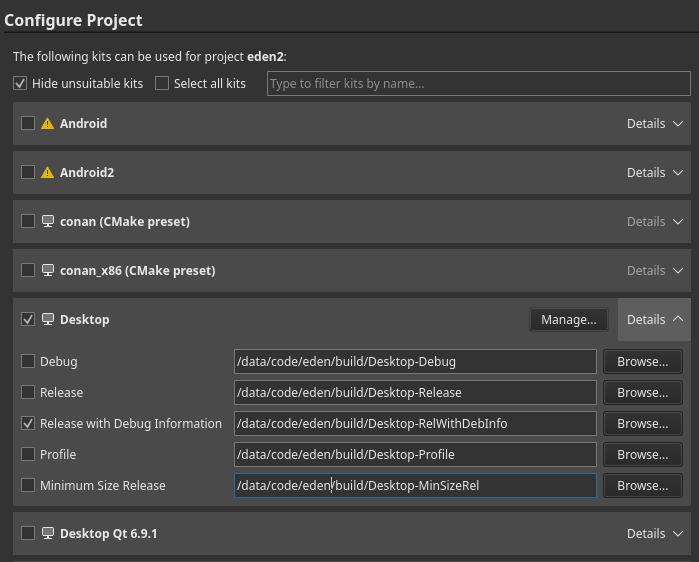
Hit "Configure Project", then wait for CMake to finish configuring (may take a while on Windows).
### Option B: Command Line
Click to Open
> [!WARNING]
>For all systems:
>
>- *CMake* **MUST** be in your PATH (and also *ninja*, if you are using it as ``)
>- You *MUST* be in the cloned *Eden* directory
>
>On Windows:
>
> - It's recommended to install **[Ninja](https://ninja-build.org/)**
> - You must load **Visual C++ development environment**, this can be done by running our convenience script:
> - `tools/windows/load-msvc-env.ps1` (for PowerShell 5+)
> - `tools/windows/load-msvc-env.sh` (for MSYS2, Git Bash, etc)
Available ``:
- MSYS2: `MSYS Makefiles`
- MSVC: `Ninja` (preferred) or `Visual Studio 17 2022`
- macOS: `Ninja` (preferred) or `Xcode`
- Others: `Ninja` (preferred) or `UNIX Makefiles`
Available ``:
- `Release` (default)
- `RelWithDebInfo` (debug symbols--compiled executable will be large)
- `Debug` (if you are using a debugger and annoyed with stuff getting optimized out)
Caveat for Debug Builds:
- If you're building with CCache, you will need to add the environment variable `CL` with the `/FS` flag ([Reference](https://learn.microsoft.com/pt-br/cpp/build/reference/fs-force-synchronous-pdb-writes?view=msvc-170))
Also see the root CMakeLists.txt for more build options. Usually the default will provide the best experience, however.
```sh
cmake -S . -B build -G "" -DCMAKE_BUILD_TYPE= -DYUZU_TESTS=OFF
```
If you are on Windows and prefer to use Clang:
```sh
cmake -S . -B build -G "" -DCMAKE_C_COMPILER=clang-cl -DCMAKE_CXX_COMPILER=clang-cl
```
### Option C: [CLion](https://www.jetbrains.com/clion/)
Click to Open
- Clone the Repository:
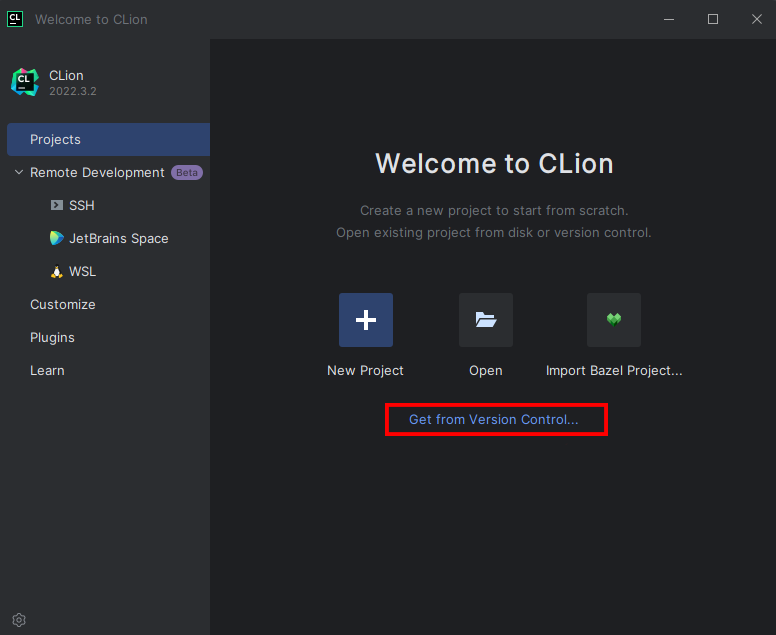
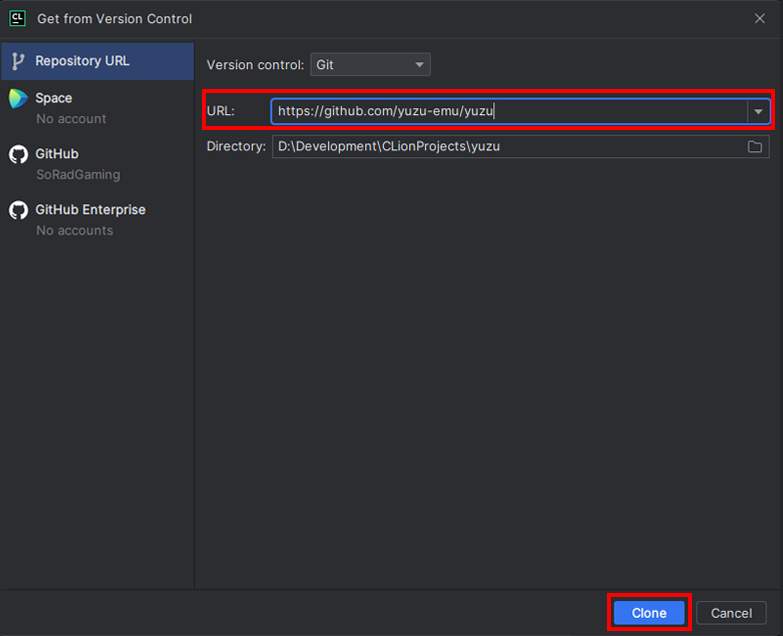
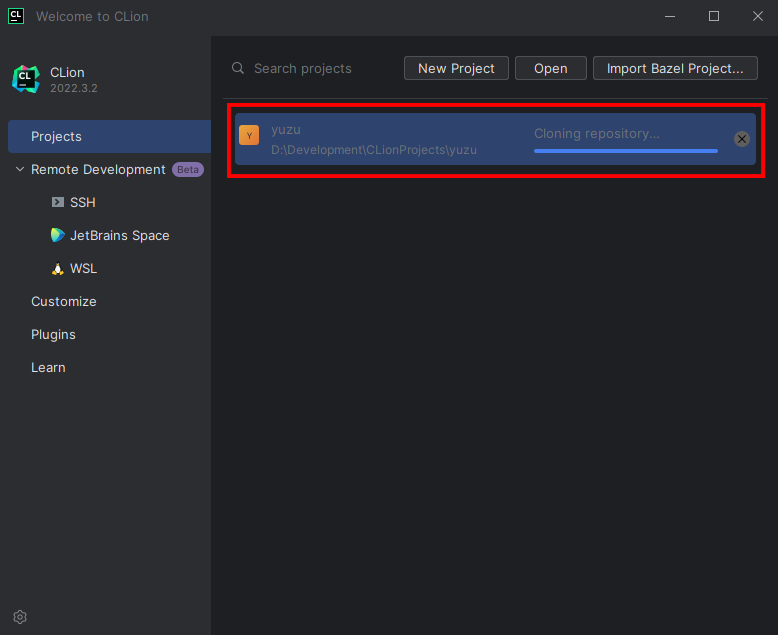 ---
### Building & Setup
- Once Cloned, You will be taken to a prompt like the image below:
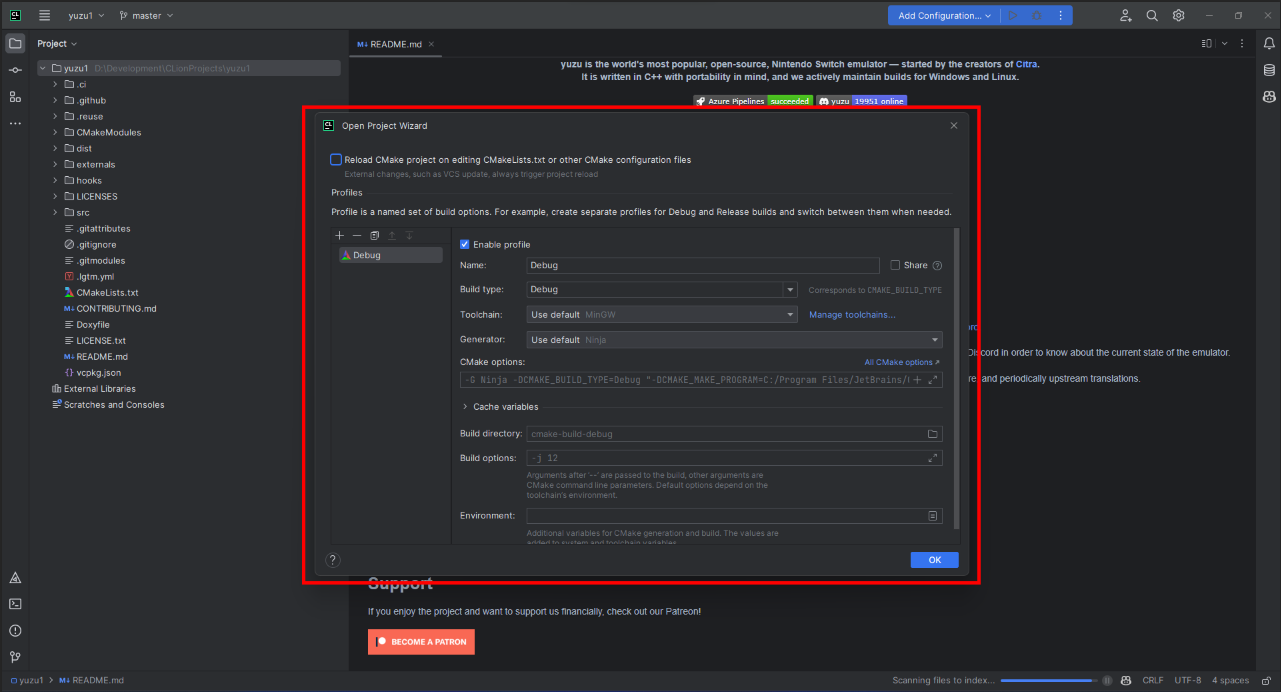 - Set the settings to the image below:
- Change `Build type: Release`
- Change `Name: Release`
- Change `Toolchain Visual Studio`
- Change `Generator: Let CMake decide`
- Change `Build directory: build`
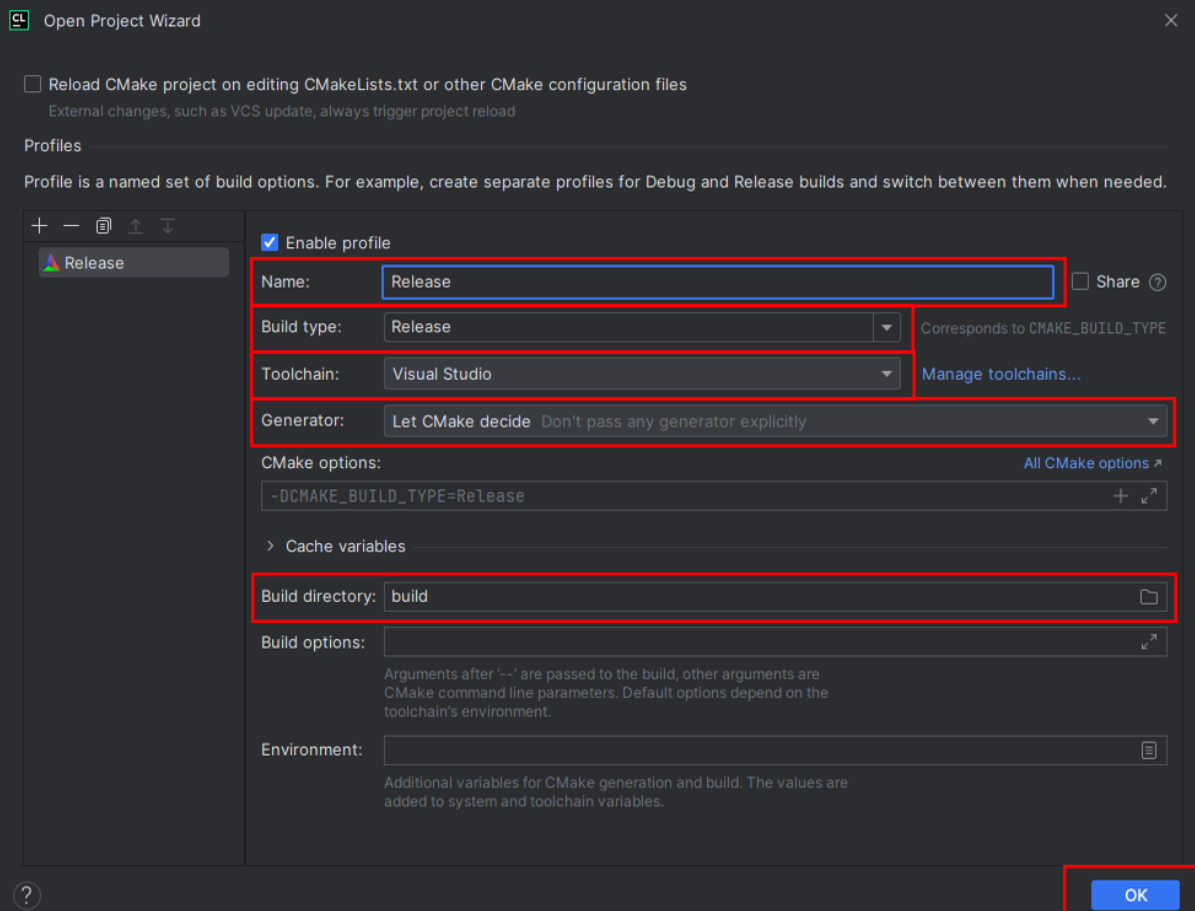 - Click OK; now CLion will build a directory and index your code to allow for IntelliSense. Please be patient.
- Once this process has been completed (No loading bar bottom right), you can now build Eden
- In the top right, click on the drop-down menu, select all configurations, then select Eden
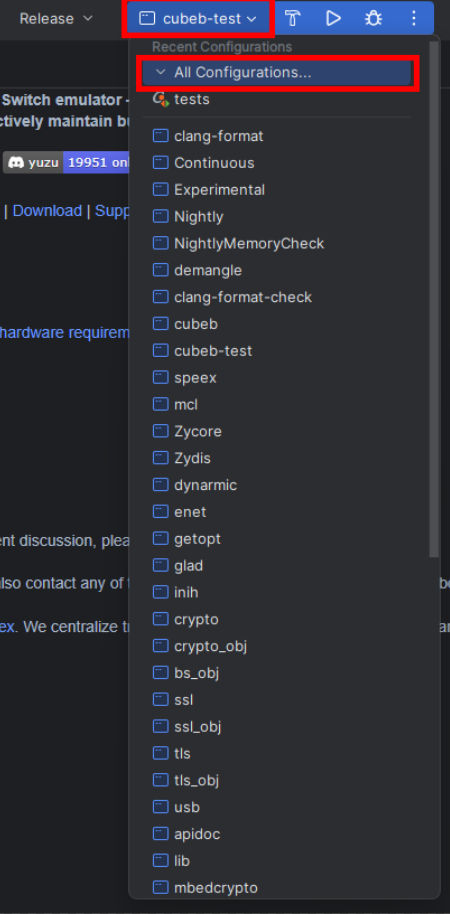 - Now run by clicking the play button or pressing Shift+F10, and Eden will auto-launch once built.

#### Option D: Visual Studio with clang-cl
1. Install `"x64 Native Tools Command Prompt"` for VS from the installer and also install `cmake-gui`.
2. Open `"x64 Native Tools Command Prompt"` and type `cmake-gui`.
3. Click configure choose ninja generator > specify native compilers.
4. Put `"C:/Program Files/Microsoft Visual Studio/18/Community/VC/Tools/Llvm/x64/bin/clang-cl.exe"` as your C/C++ compiler path.
5. Open `Visual studio > Open project` or Solution > Change to search for the CMake project file (`CMakeList.txt`) file on the cloned directory, and then build.
## Troubleshooting
If your initial configure failed:
- *Carefully* re-read the [dependencies guide](Deps.md)
- Clear the CPM cache (`.cache/cpm`) and CMake cache (`/CMakeCache.txt`)
- Evaluate the error and find any related settings
- See the [CPM docs](CPMUtil.md) to see if you may need to forcefully bundle any packages
Otherwise, feel free to ask for help in Stoat or Discord.
## Caveats
Many platforms have quirks, bugs, and other fun stuff that may cause issues when building OR running. See the [Caveats page](Caveats.md) before continuing.
## Building & Running
### On Qt Creator
Simply hit Ctrl+B, or the "hammer" icon in the bottom left. To run, hit the "play" icon, or Ctrl+R.
### On Command Line
If you are using the `UNIX Makefiles` or `Visual Studio 17 2022` as ``, you should also add `--parallel` for faster build times.
```sh
cmake --build build
```
Your compiled executable will be in:
- `build/bin/eden.exe` for Windows,
- `build/bin/eden.app/Contents/MacOS/eden` for macOS,
- and `build/bin/eden` for others.
## Scripts
Take a look at our [CI scripts](https://github.com/Eden-CI/Workflow). You can use `.ci/common/configure.sh` on any POSIX-compliant shell, but you are heavily encouraged to instead write your own based. It's not really that hard, provided you can read CMake.